
mask.gif
STEP 1
The same with the step 1 of Color Embossment lesson, we prepare the two true color image

image.gif

image.gif
STEP 2
As you learned in the previous lesson, apply mask.gif as mask image to image.gif. Then change the background color of this image similar to the background color of your homepage.
STEP 3
Choose Colors/Decrease Color Depth/256 colors... to decrease color depth of image.gif to 256.
STEP 4
There are two ways to set the background color of GIF89a.
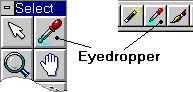
(1) Select Eyedropper tool and right-click on the background of
image.gif. Then choose File/Save As..., press Option
button, and check Set the Transparency Value to the Background Color,
press OK, and then save the file in GIF89a format.

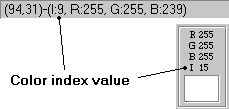
(2) Select Eyedropper tool and move the cursor to the background of image.gif. See the status bar at the bottom of the main window, and remember the color index value of the background color. In this case, the value is 9. Press Option button in Save As... dialog box, and do the following setting.

